


You might have noticed we mostly write technical-focused Sanity blogs, but we were thrown a complete curveball the other day by a client. "Do you have any practical tips we could use as content editors?"... Erm... No, we actually didn't.
Well, that's going to change today with this group of tips to improve your Sanity experience purely from a client perspective. We're talking about ways without any dev work to make it easier to find, generate, and publish content on a Sanity website.
Sanity AI Assist
No one likes doing the boring, repeatable stuff. Not developers. Definitely not content editors or us. And yet, every CMS somehow makes you do the same SEO fields, image descriptions, summaries, and metadata over and over again, like it’s a character-building exercise. By using the latest Sanity AI Assist, (opens in new tab) you can automate all this, as it understands your content model, validation rules, and references out of the box. When you ask it to generate or update content, it puts everything in the right place automatically without you having to press Cmd+C again and again.
The real win is scale. Instead of manually checking dozens (or hundreds) of pages, the Sanity Content Agent (opens in new tab) can scan your content library in one go, surface gaps, flag outdated claims, and suggest improvements. What used to take days now takes minutes, and without introducing AI slop into your site.
Adding on copy-paste fields
Another drag for us was creating fields from scratch. Obviously, the new AI feature simplifies it. But did you know you can just copy a field (opens in new tab) from one page and paste it into another page?
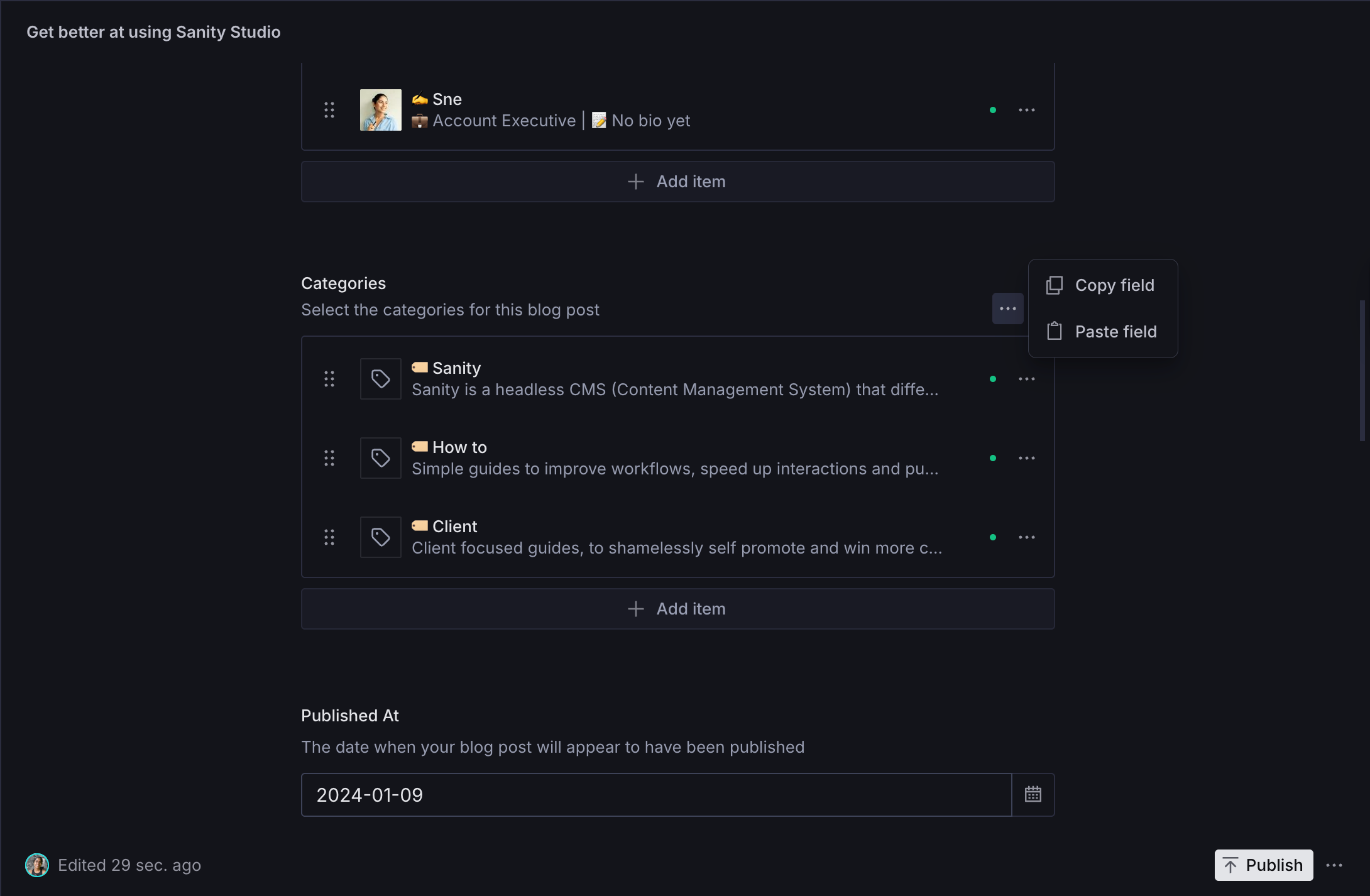 Sanity studio copy paste fields
This one sounds obvious, but it’s criminally underused. Sanity lets you copy individual field values or entire documents directly inside Studio. Copy it once, paste it where it belongs, and move on with your day.
You can do this in two ways:
- Use the Field Actions menu on any supported field
- Or just Cmd/Ctrl + C → Cmd/Ctrl + V like a normal human
It’s a small feature that quietly saves hours, especially when you’re duplicating content across pages, locales, or document types without rebuilding everything from scratch.
Make some space
Did you know that you can close the columns that make up the navigation panes within Sanity? You just have to press the text at the top of the column (or the title of the column), and it'll compact away to the left or right and give you more screen real estate to focus on important things. Check it out in the video below.
Search the document list
Sticking to the **document list-**related tips, you can search for a document within Sanity by pressing the search at the top of the document list. Okay, pretty simple, yes. But did you know it's a fuzzy search that doesn't just check the title, it can query any of the fields inside the document.
E.g I remember talking about ChatGPT in the article I just wrote, but I can't remember the name of the article. Just type "ChatGPT," and up it'll pop.
Search everywhere
Now that works perfectly fine if you know where your content lives. However, if you only remember a few details about your content, and you're looking to implement changes on the website. For example, if you're searching for a piece of text in the footer, you can hit CMD + K (Ctrl + K on Windows) from anywhere, and a helpful little search bar will appear, letting you search for a query with fuzzy search. This allows you to search every document type at once.
Feels like a word doc
If you're looking at getting the ultimate feeling of "editing like a Word document," you can achieve that with one of the tips (make some space) discussed earlier in this post.
Yes, more space, less distraction, better editing experience. If you're opening up the portable text component at the top right, make sure you're also closing the columns to get a distraction-free writing experience. Clean space, clean mind, higher velocity... You get the idea.
No spam, only good stuff
Subscribe, for more hot takes


Preview and visual editing
With Sanity, previews aren’t guesses. You see your changes **as you’re making them in **Presentation (opens in new tab) directly on the page. Draft content stays safely in preview, published content stays public, and you can switch between the two without breaking anything or bothering a developer.
We've lost count of how many teams come to us saying, "Preview doesn't match prod" or "Can you deploy so I can see my change?" which is frankly wild in this day and age.
Sanity gets this right. Drafts and published content live side-by-side in the Content Lake, and with (opens in new tab)Perspectives (opens in new tab), we decide exactly what the frontend sees. Production only ever queries published content, while preview environments run the same queries against drafts (or release stacks) and hydrate them live.
Visual Editing (opens in new tab) makes it even easier. You can click the exact section you want to change on the website, jump straight to the right field in Studio, edit it, and see the update instantly. Need to reorder sections on a landing page? Drag them. Want to sanity-check a headline, image, or CTA before publishing? It’s already there, in context.
DAM or media management
In Sanity, you upload an asset once and reuse it everywhere. One logo across eight projects? Update it once, and it’s fixed everywhere it’s referenced. Finding images doesn’t rely on filenames anymore, either, like final-final-v3.jpg.
The media library (opens in new tab) understands what’s in an image. You can search by subject, scene, colours, or concepts, then layer on real-world context like licence type, campaign, approval status, or expiry date. Rights management lives with the asset, not in a spreadsheet someone forgot to update. Even bulk actions are smooth. Select images like files on your desktop, update licences, move collections, or clean out assets that aren’t used anywhere, and trust us when we say that you don't need a developer to do this. You can probably do it in 5 minutes without any knowledge of coding.
Scheduling
If you’re working on a single page and want it to go live later, Scheduled Drafts (opens in new tab) (opens in new tab)lets you pick a date, lock it in, and forget about it. The document is clearly marked as scheduled, so other editors can see what’s happening and don’t accidentally change it. You don't need reminders or calendar events, and nobody has to ask who published what.
And when you’re dealing with bigger updates, Content Releases (opens in new tab) let you group multiple pages together, preview them as one, and schedule the whole thing in advance. Think launches, campaigns, or seasonal updates. All queued up, visible to the team, and shipped cleanly at the exact time you chose.
Drag & drop your blocks
So if you're lucky enough to have a page builder on your website, you may know that you can easily drag and drop those blocks in different orders. However, did you know you can press the little kebab menu (yes, that's what it's called) on the right-hand side and use the insert new block above/below, to add a new block in between the above/below blocks.
Looking for more tips?
Well, if you're looking for more tips, we're in the process of writing up a chunky blog post about Sanity AI, or if it's something more technical, we have some great blog posts on:
Or if you know something we don't, to make your Sanity content editorial flow faster, with minimal coding, get in touch, we'd love to add it to our list. And if you want your team trained up properly, our workshops cover all of this and more.