How to Get Better Documentation in Your Sanity studio
A quick look at page-level documentation in Sanity Studio using Turbo Start Sanity and sanity-plugin-md-notes. You can easily point your AI agent at a document, and it fetches the data to render co…
Loading video player…
Frequently asked questions
What is Sanity Studio and how do I access it?
How do I view my home page content in Sanity Studio?
Can I collapse the content view in Sanity Studio?
How do I adjust the width of the content panel?
How do I set up an AI agent to fetch data from Sanity Studio?
What kind of content can I add to Sanity Studio documents?
Does this work in presentation mode as well?
Continue watching
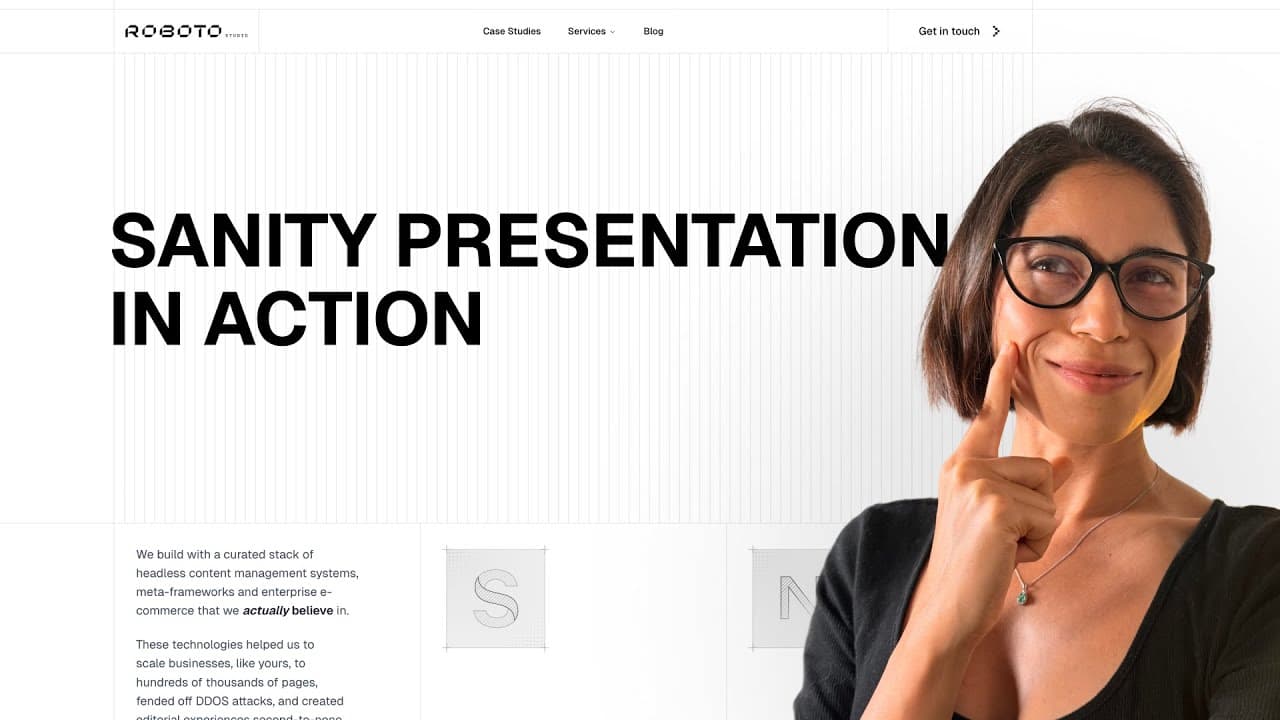
Sanity presentation in action
Trying to get an idea of how it actually feels to edit something in Sanity's Presentation mode? Here's how we edit pages on our own site in real time.

Optimizing usage on Vercel
A Vercel community session where Jono answers live questions about optimizing usage: where the costs actually come from on Vercel, and the practical changes that keep image optimization, function invocations, and bandwidth spend under control.
How Roboto Studio ships faster with v0
Vercel's first ever community session, featuring us. Jono walks through how we build applications from the ground up with v0, skipping traditional design tools entirely, with real examples like an investment firm site and a financial calculator.
Get in touch
Tell us what you're building. We reply within one working day. Jono or someone on the team picks up every message personally.